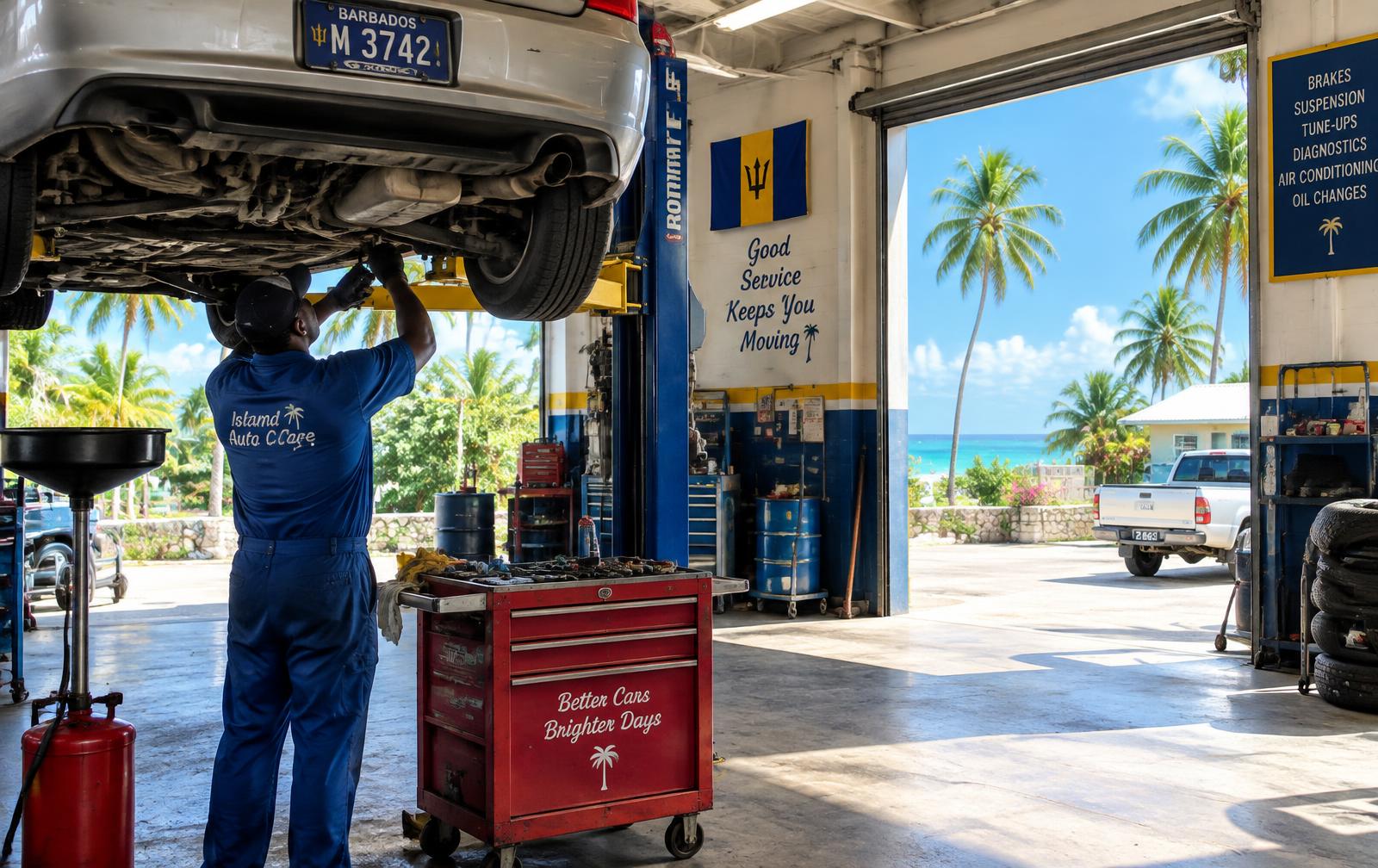
Coral Auto Desk
From signed check-in to BiMPay payment — every car, every part, every approval in one place.
What it does
Tablet intake
Check cars in at the counter on a tablet: customer, vehicle, mileage and complaint.
Customer signature
Customers sign on screen to authorise the inspection and agree to your terms.
5-stage job board
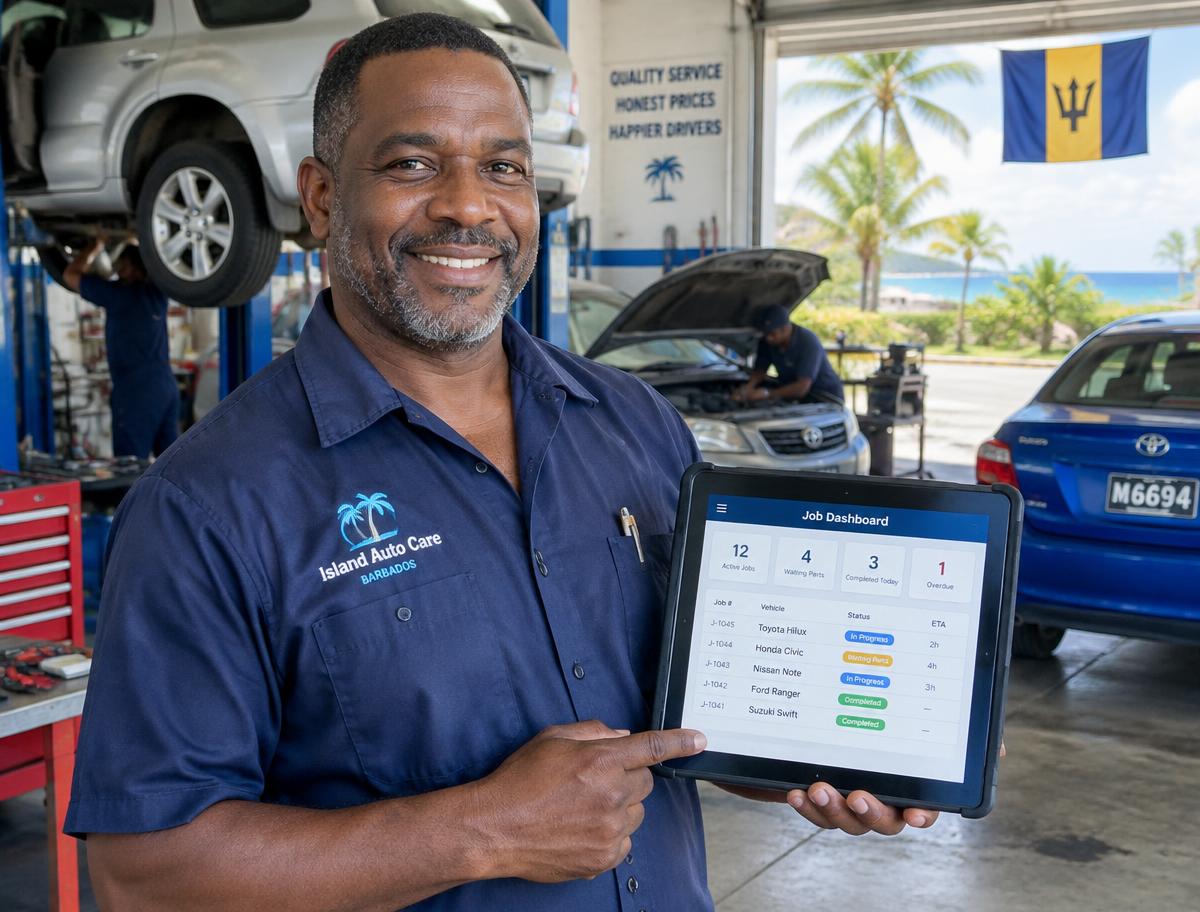
Every car on one board, moving through five clear stages.
List view
Switch to a sortable list to search and filter all jobs fast.
Parts audit trail
See who added, used or removed every part, and when.
WhatsApp approvals
Send a quote to the customer on WhatsApp; they approve or decline with a tap.
BiMPay invoicing
Raise the invoice and let customers pay through BiMPay.
The 5-stage job board
Every car moves left to right. Prefer rows? Switch to List view any time.
- 1Checked in
- 2Awaiting approval
- 3In progress
- 4Quality check
- 5Ready for pick-up
- Signed intake protects you in disputes
- Customers approve on WhatsApp — no chasing calls
- Parts history shows exactly where stock went
- Get paid faster with BiMPay links
Owner guide
Quick start in 8 steps
- 1
Set up your shop
Sign in and add your shop name, address, phone number and your intake terms that customers will sign.
- 2
Connect BiMPay and WhatsApp
Link your BiMPay merchant account for invoicing, and your shop's WhatsApp number for sending approval requests.
- 3
Check in a car on the tablet
Tap New Intake. Enter the customer, the registration (e.g. M 3742), mileage and what's wrong. Hand the tablet over for the customer to sign.
- 4
Find it on the job board
The car appears in Checked in. Use the board to drag jobs between the 5 stages, or switch to List view to search and sort.
- 5
Send a quote for approval
Add labour and parts, then tap Send via WhatsApp. The job sits in Awaiting approval until the customer replies — their answer is saved on the job.
- 6
Record parts as you use them
Log each part against the job. The parts audit trail records who did it and when, so stock always adds up.
- 7
Finish and check the work
Move the job to Quality check, then Ready for pick-up once it passes.
- 8
Invoice with BiMPay
Tap Invoice on the finished job. The customer gets a BiMPay link; the job is marked paid when payment comes through.